Accessibility Presentation

Employer
uConnect
Project Type
Technologies
Google SlidesAdobe Illustrator

As the accessibility lead at uConnect, I created an internal slide deck to educate teammates on web accessibility best practices. The presentation covers key concepts such as color contrast, alt text, keyboard navigation, and screen reader compatibility, along with practical tips for helping our clients create more accessible content.

Though this was for an internal audience and design tooling is limited through Google Slides, I still had a lot of fun designing something engaging and on-brand.
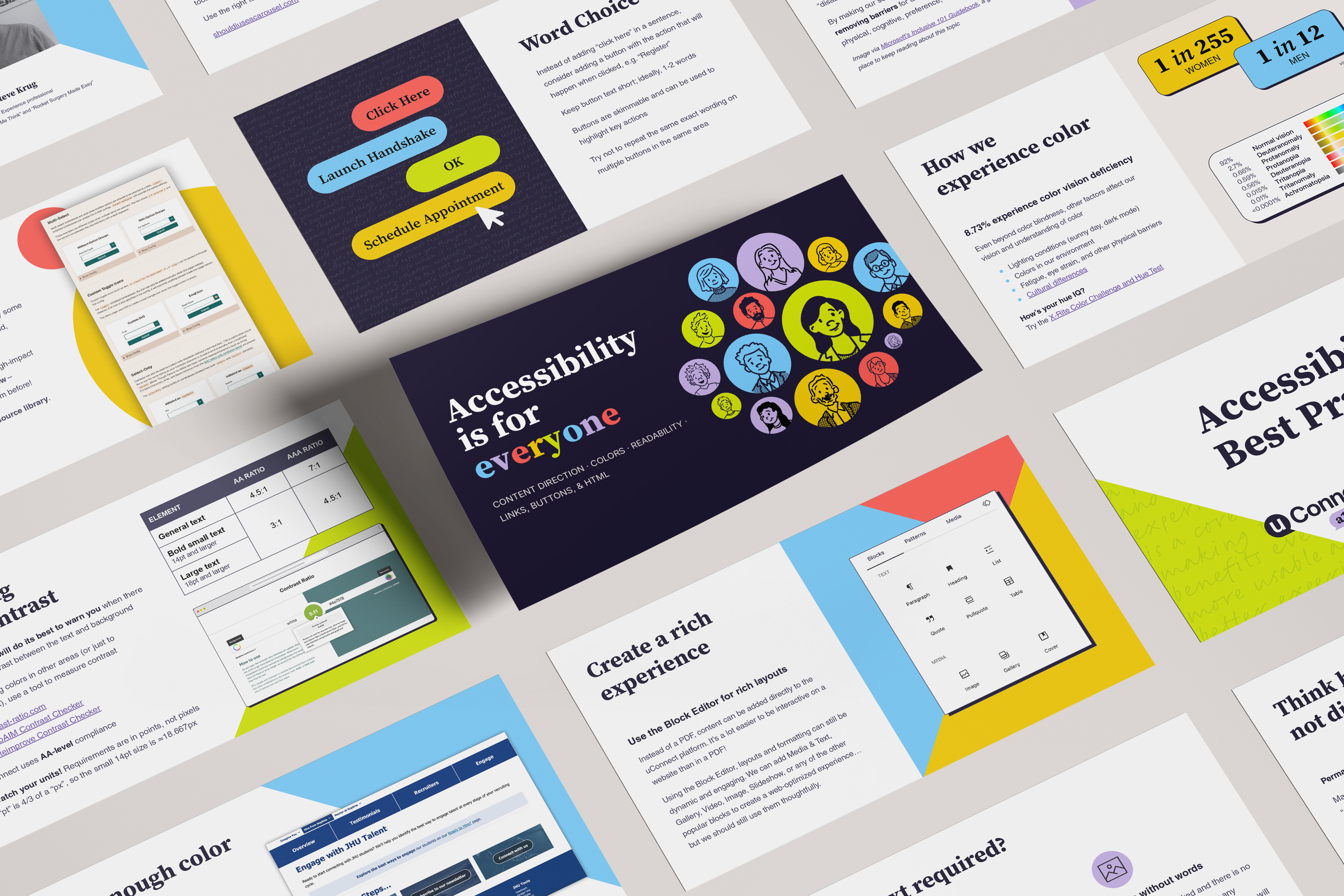
A flat-lay photo of a slide deck mockup focused on digital accessibility (A11y). The central slide features a dark background with the title, 'Accessibility is for everyone,' and a graphic of diverse faces. Surrounding slides show principles like WCAG color contrast ratios, statistics on color vision deficiency, block editor layouts for a rich experience, and examples of button design. The slides are professionally designed, utilizing a bright, modern palette.
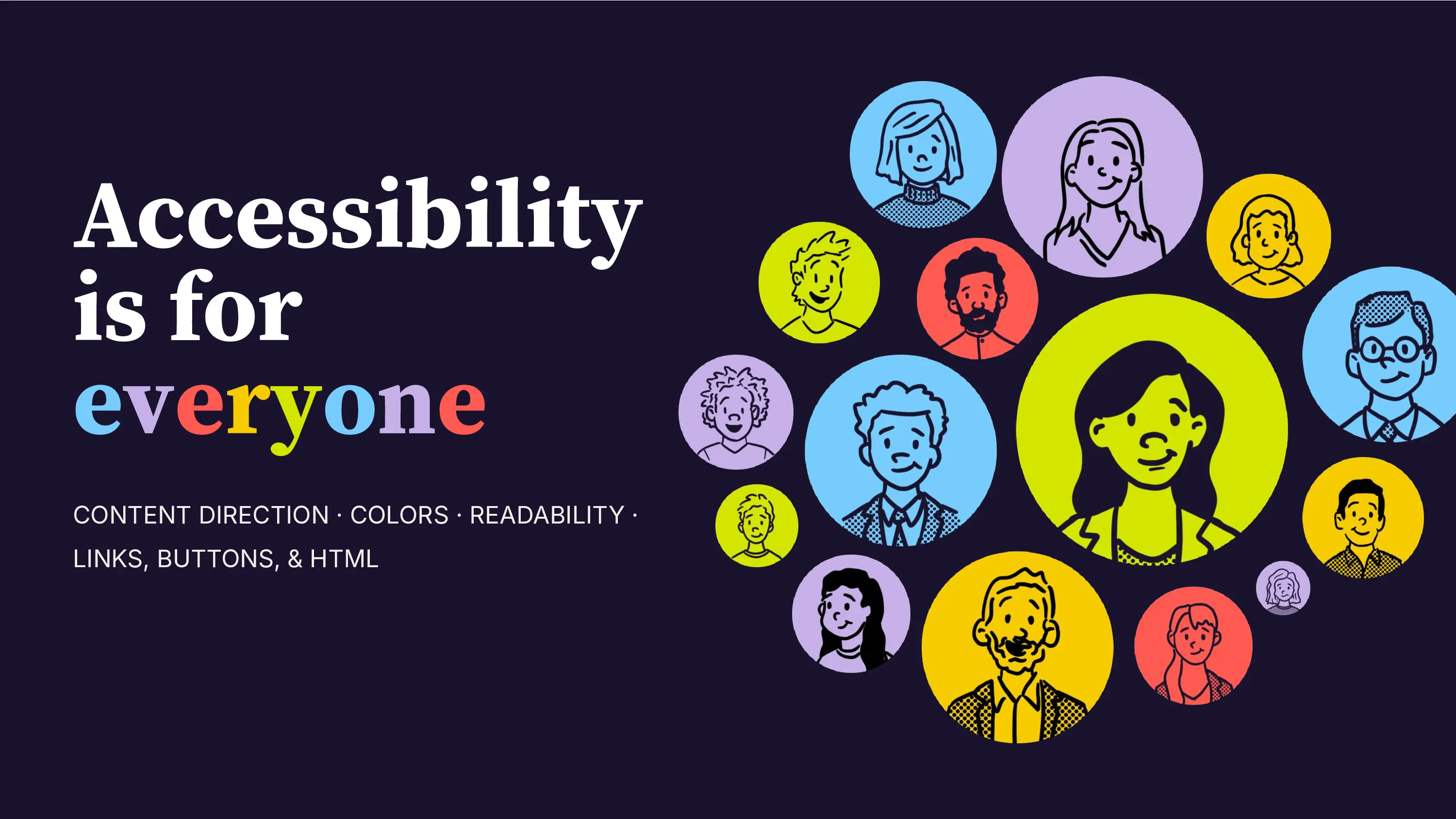
A deep navy background with the text 'Accessibility is for everyone' followed by a list of topics: Content Direction, Colors, Readability, Links, Buttons, & HTML. On the right, a crowd of diverse, colorful, and expressive people are shown in abstract, circular cartoon portraits.
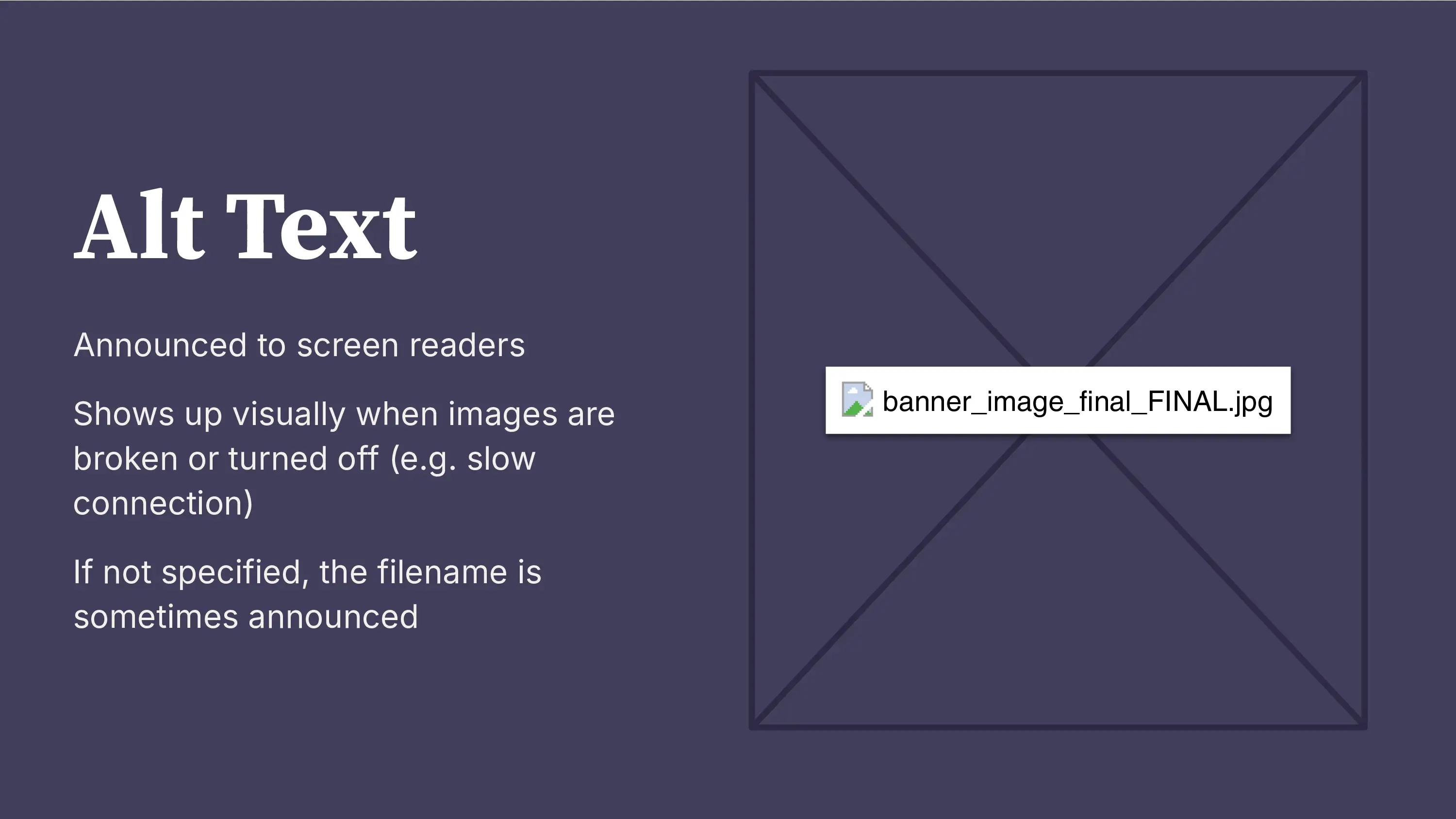
A slide titled 'Alt Text' with bullet points explaining its purpose: it's announced to screen readers, shows up visually when images are broken or turned off, and if not specified, the filename is sometimes announced. On the right, a large wireframed image placeholder displays the filename 'banner_image_final_FINAL.jpg'.
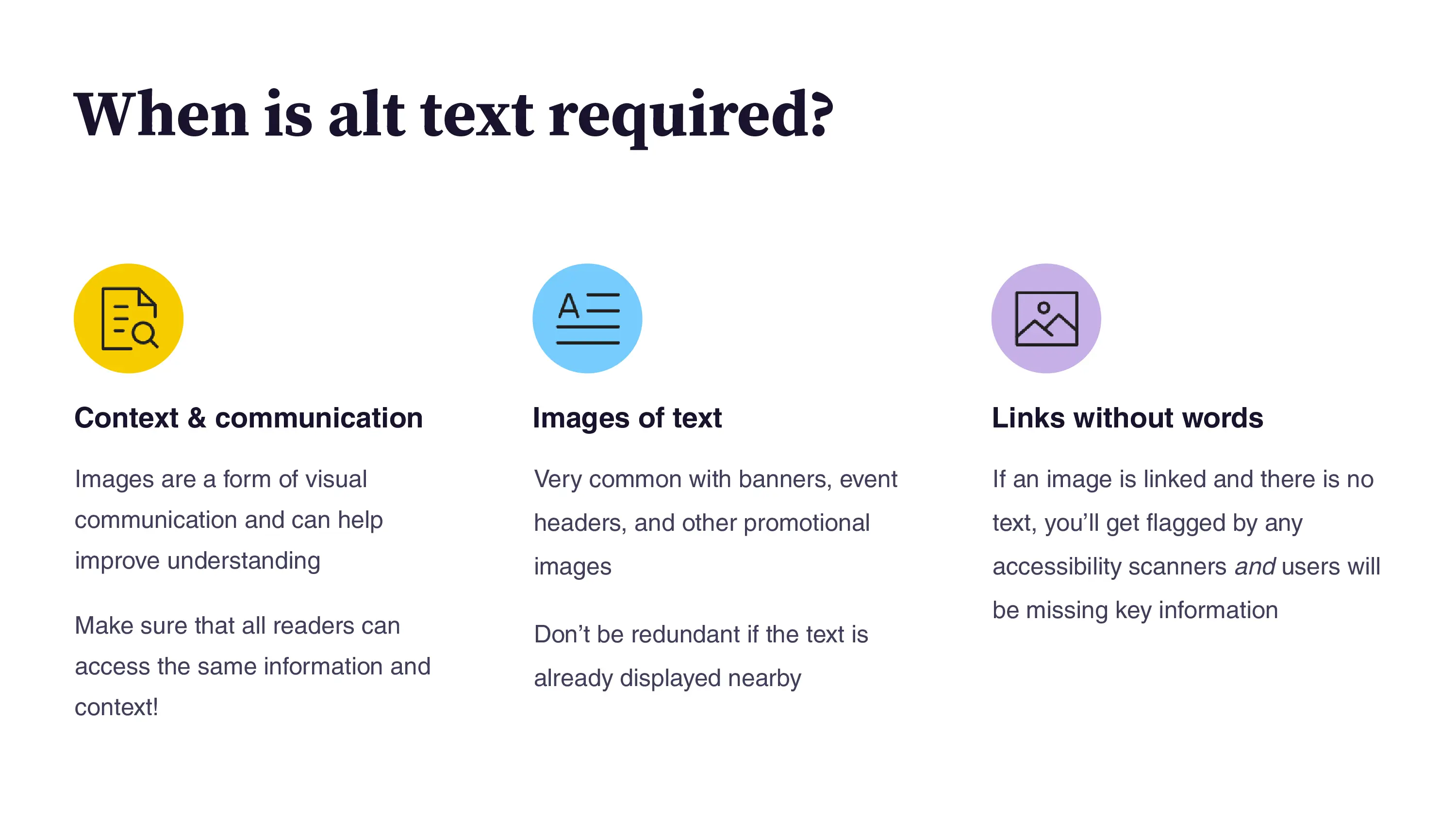
A slide asking 'When is alt text required?' It shows three columns with icons explaining the requirements. 1. Context & communication: images that provide visual communication and context. 2. Images of text: common in banners and event headers. 3. Links without words: when an image is linked but has no visible text, causing it to be flagged by scanners and users.
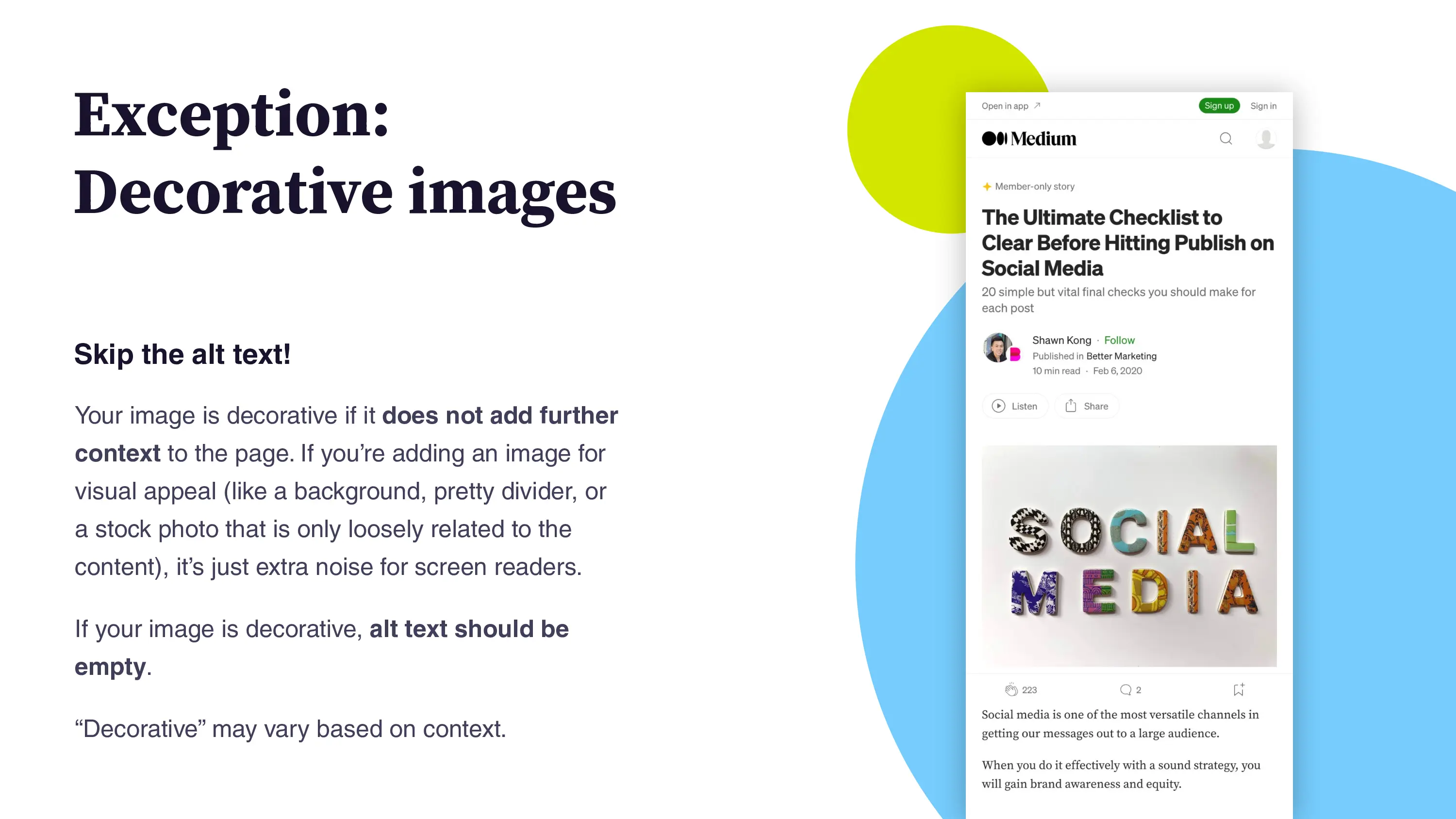
A slide titled 'Exception: Decorative images' that explains users should 'Skip the alt text!' if an image is purely for visual appeal and does not add context. On the right, a screenshot of a Medium article titled 'The Ultimate Checklist to Clear Before Hitting Publish on Social Media' shows a photo of the words 'SOCIAL MEDIA' spelled out with colorful, textured letters.
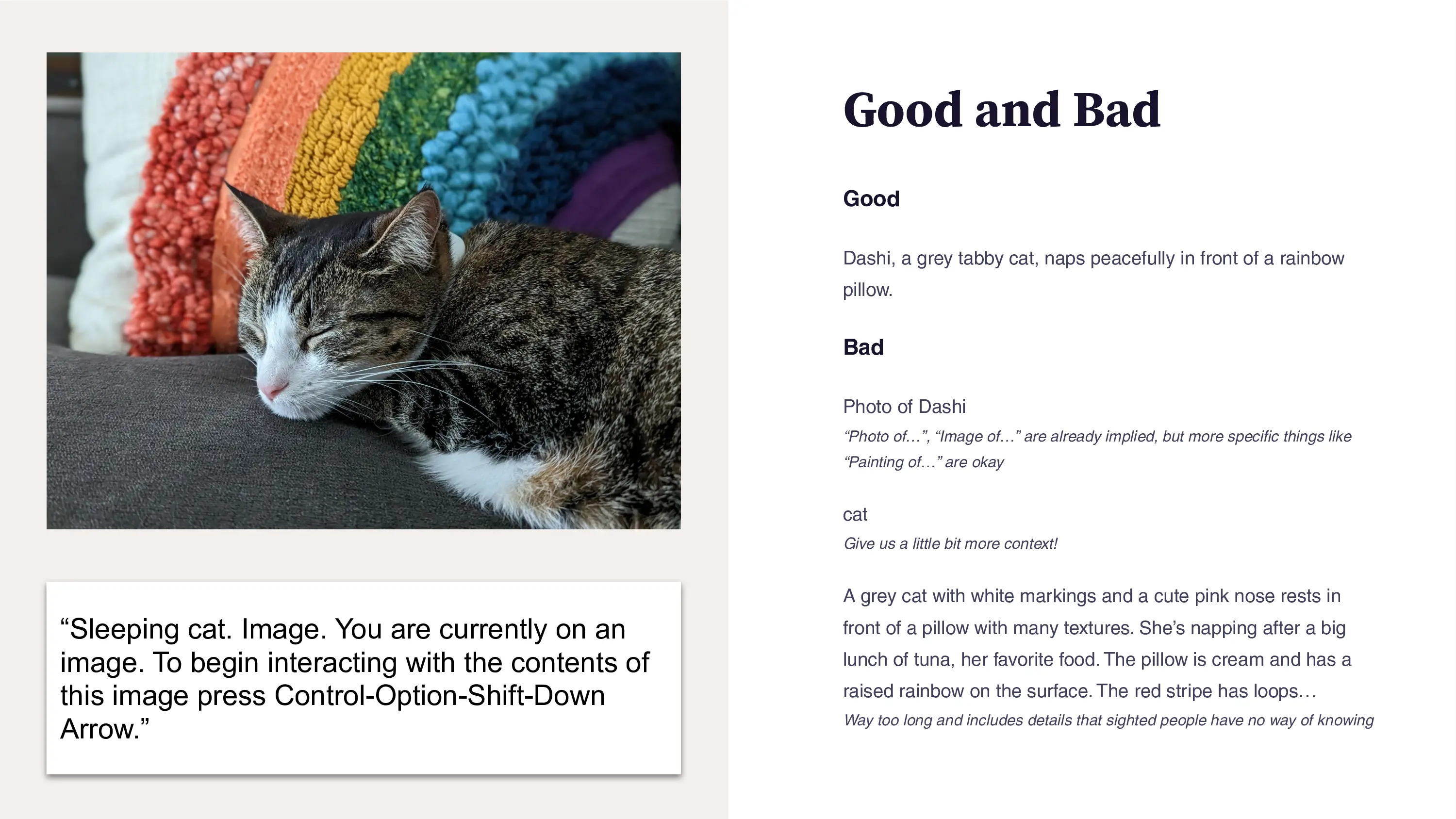
A side-by-side example of alt text quality. On the left is a close-up photograph of Dashi, a grey tabby cat with white markings, sleeping peacefully in front of a rainbow pillow. On the right, a section titled 'Good and Bad' lists examples, with the Bad text being: 'photo of Dashi' and another example with a much longer description that has extraneous details and things that a sighted user would not be able to glean from the image, such as Dashi being tired because she ate her favorite food.
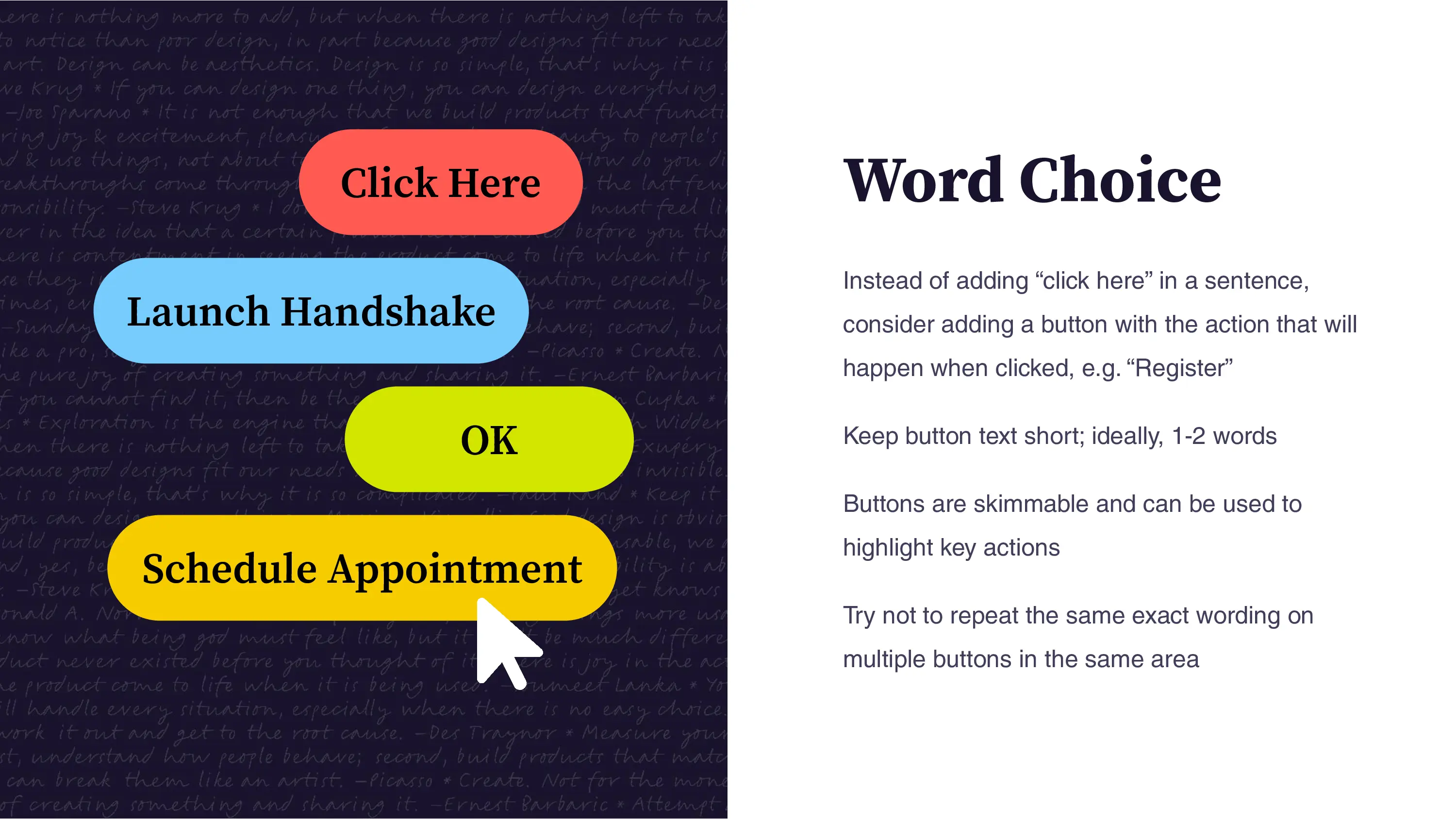
A slide discussing button 'Word Choice.' On the left, several large, colorful buttons with poor word choice are overlaid on a gray background of text: 'Click Here,' 'Launch Handshake,' 'OK,' and 'Schedule Appointment.' On the right, text advises using action-oriented words instead of 'click here,' keeping button text short (1-2 words), and avoiding repetition of the exact same wording on multiple buttons.
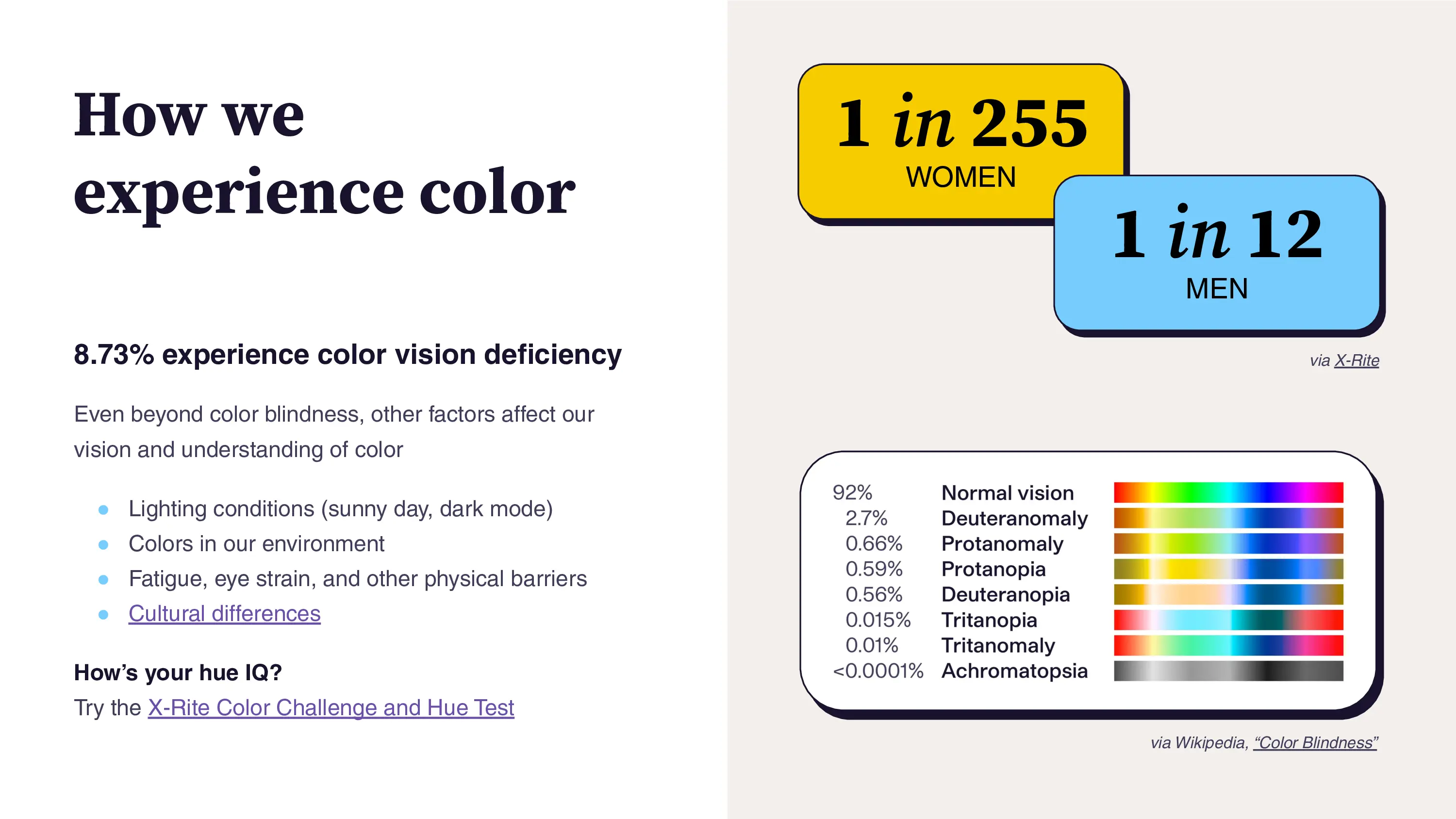
 A slide titled 'How we experience color.' Text on the left states that 8.73% experience color vision deficiency and lists other factors that affect color understanding, such as lighting, fatigue, and cultural differences. The right side features two large boxes: a yellow box states '1 in 255 women' and a blue box states '1 in 12 men.' Below these is a table showing the percentage of the population with various color vision deficiencies, including Normal vision (92%), Deuteranomaly (2.7%), and Protanomaly (0.66%), next to a color swatch spectrum.
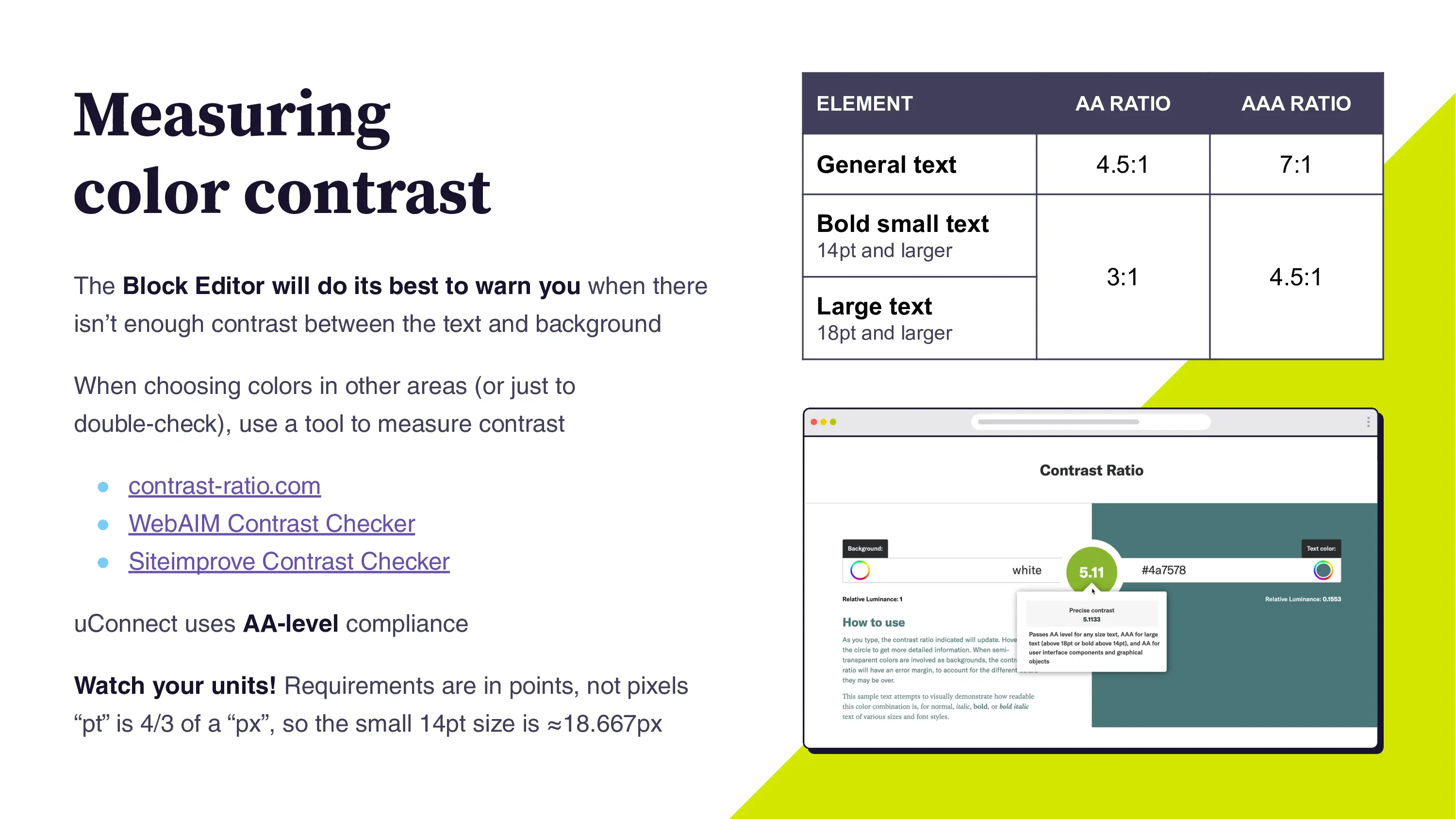
A slide titled 'Measuring color contrast.' On the left, text explains that the Block Editor will warn about low contrast and suggests using tools like contrast-ratio.com to double-check colors. The text also notes that requirements are in points (pt), not pixels (px). The right side shows two key visuals: A table with AA and AAA contrast ratios for General, Bold small, and Large text. Below it is a screenshot of a Contrast Ratio Checker tool showing a successful contrast ratio of 5.11 for a dark teal color against white.
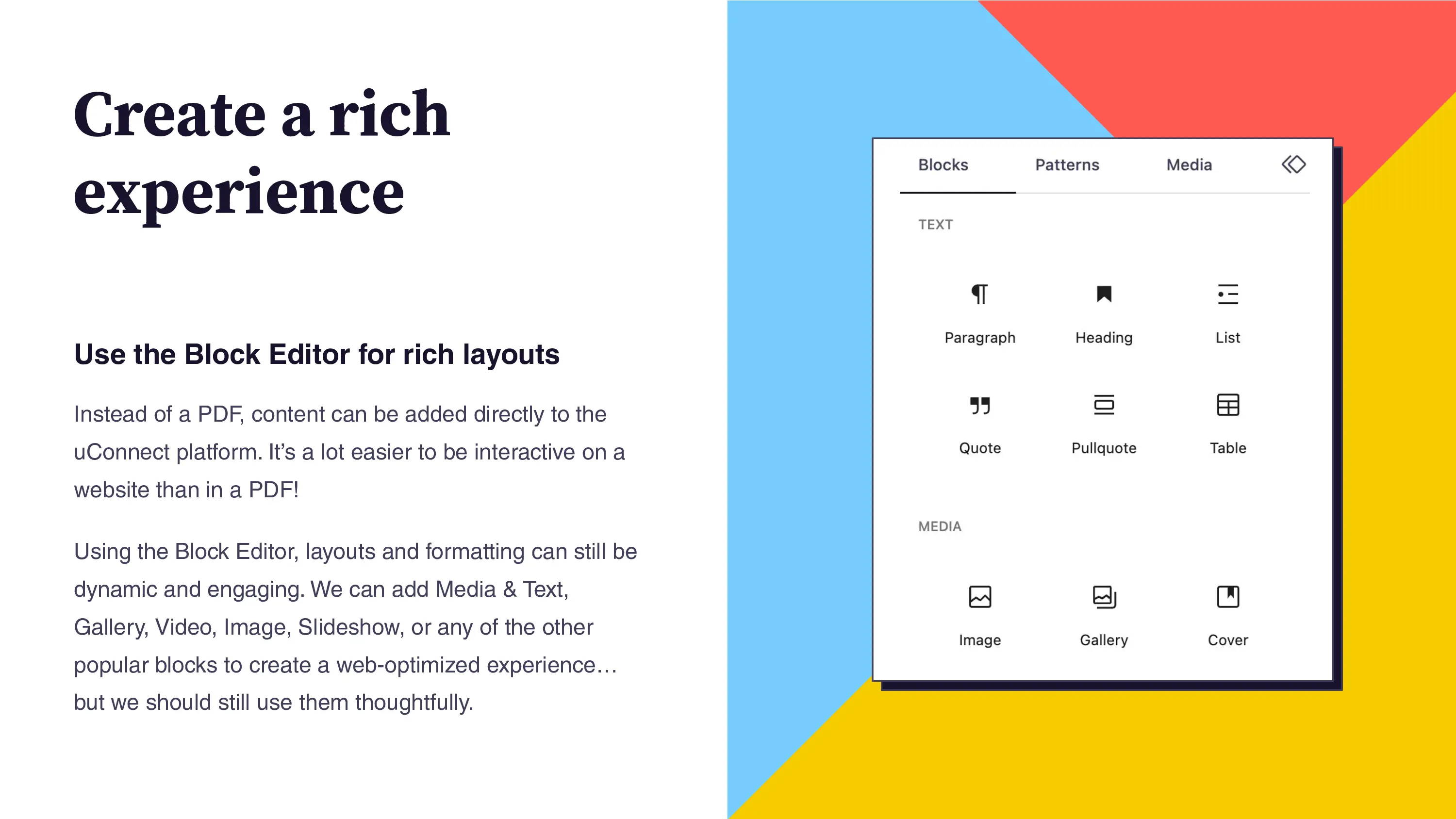
A slide titled 'Create a rich experience' that advocates using the Block Editor for rich layouts instead of PDFs, which are less interactive. The text suggests using blocks like Media, Text, Gallery, and Video. On the right, a screenshot shows the Block Editor interface, displaying various block options categorized under 'Text' (Paragraph, Heading, List, Quote, Pullquote, Table) and 'Media' (Image, Gallery, Cover).